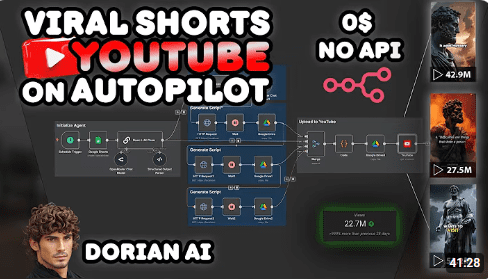
By learning how to automate YouTube Shorts with AI you can save lots of time. Tools like VideoTube AI Shorts, Descript, and Creatomate help. They turn simple ideas into great Shorts without needing to edit a lot.
This guide is easy to follow for beginners. It covers making YouTube Shorts from start to finish. You’ll learn how to make Shorts faster and post more often.
Imagine using ChatGPT to make scripts, then sending them to Creatomate or Descript. Add voices from ElevenLabs or Descript, and schedule posts with TubeBuddy or Zapier. This way, you can make more Shorts and have more time for new ideas.
Essential Points to be noted;
- You can automate YouTube Shorts with AI using tools like VideoTube AI Shorts, Descript, and Creatomate.
- You’ll make more content faster, even if you don’t know how to edit well.
- Workflows help with ideas, scripts, voices, templates, and posting at set times.
- Using spreadsheets and no-code tools makes making shorts faster.
- Start small, check AI work, and use your own templates to keep quality up.
Why You Should Automate YouTube Shorts with AI: Benefits and ROI
Automating YouTube Shorts saves you a lot of time. You can stop doing the same editing tasks over and over. This lets you spend more time on new ideas and talking to your audience.
Save time with batch content creation
Batch content creation means making lots of scripts and clips at once. Tools like VideoTube AI Shorts and Descript help a lot. They let you publish daily without getting too tired.
Scale consistent posting to improve algorithm chances
Posting videos regularly helps YouTube find your channel. When you post more, you might get more viewers and subscribers. AI helps you keep posting without getting too tired.
Reduce editing overhead using AI video tools and templates
AI tools make editing easier by doing things like adding captions and voiceovers. Descript and Creatomate make editing faster. This way, you can make lots of videos without doing the same thing over and over.
Lower production costs with automated workflows and no-code tools
No-code tools and spreadsheets make making videos cheaper. Creatomate can make hundreds of videos at once. Zapier or Make help you set up these workflows without needing a programmer.
How to automate youtube shorts with ai
You can make a workflow that turns an idea into a Short in hours. The key steps are: coming up with ideas, picking scripts or clips, adding voice and visuals, editing, and publishing. AI tools can help speed up these steps and cut down on work.
Overview of an automated Shorts workflow
Begin by jotting down ideas in a spreadsheet or project board. Use AI to grow a topic into a short script or list of clips. Then, use a video generator or editor to add voice, captions, and a vertical layout.
Finish the Short with a quick check before scheduling or uploading through an API.
Key steps from ideation to posting
1. Ideation: gather ideas from trends, analytics, or evergreen lists.
2. Script/text: write short hooks and lines for 15–60 seconds.
3. Media selection: pick stock video, clips, or AI-generated scenes.
4. Voice and captions: add TTS or recorded voice and auto captions.
5. Edit and brand: apply your template, transitions, and review.
6. Publish: use scheduling tools or the YouTube API to post on a set cadence.

Types of automation: spreadsheet bulk generation, no-code integrations, and API-driven systems
Spreadsheet bulk generation is for predictable Shorts. Fill rows with titles, scripts, and assets. An engine like Creatomate can turn each row into a video automatically.
No-code integrations let you link services without coding. Use Zapier or Make to connect a prompt from ChatGPT to an AI voice, then to a template in Creatomate, and queue the upload. This is great for those who like visual workflows.
API-driven systems offer the most control. JavaScript, Python, or PHP calls can programmatically generate videos, swap assets, and handle metadata. Use APIs for custom logic, high-volume Shorts, or deeper analytics integration.
How AI Ideation and Script Generation Works
You can make many Shorts from one idea. Use clear prompts, presets, and templates. This guide helps you make YouTube Shorts easily without losing your unique voice.
Start with a clear prompt template. It should have a hook, two-line body, and CTA. For example: “Write 10 punchy 10–20 second YouTube Shorts scripts about X with a strong hook, a 2-line body, and a CTA.” This makes consistent, short scripts for editing.
Save prompt snippets for your brand’s tone and words. Add your brand’s style, tempo, and CTA format. This ensures your AI scripts always match your channel.
Use different models for better results. ChatGPT or Claude can draft hooks and facts. Then, Perplexity checks citations. Creatomate tutorials show how to link ChatGPT with Zapier or Make for easy export.
Descript can take full scripts or short prompts. It suggests voice, visuals, and B-roll. It also offers titles and descriptions for long-form content. VideoTube AI Shorts turns a rough plot into a full story, suggesting key scenes and characters.
Here’s a simple workflow: make a topic prompt → generate hooks and bodies with ChatGPT → add brand voice snippets → import into Creatomate or a spreadsheet → render with Descript or VideoTube AI Shorts.
Tools to Automatically Create and Edit Shorts
You can make a Shorts pipeline with tools for scripting, editing, voice, and captions. Choose tools that fit your workflow to save time and keep your brand the same. Here are some options for speed, custom voices, or making lots of videos.
AI video makers and editors
VideoTube AI Shorts writes scripts, suggests characters and arranges scenes for Shorts. It’s wonderful for a cohesive brand look. Descript comes with an AI Video Maker for fast edits, transcribes audio and exports Shorts. It is very quick and easy to use, but watch out for mistakes involving AI.
Template-based editors
CapCut and Canva have mobile-friendly templates for Shorts. They make styling captions and adding motion graphics easy. These tools are good for creators who want control but also use ready-made layouts.
AI voiceovers and avatars
ElevenLabs, HeyGen, and Descript offer top-notch text-to-speech and avatars. ElevenLabs sounds very natural. HeyGen adds avatars for videos without faces. Descript lets you create a consistent voice brand. You can use these services together to make lots of Shorts with AI voices.
Automatically generating captions and subtitles
You should still caption your video vs. relying on YouTube’s auto-captions. Descript and Creatomate have auto-transcription and animated captions. Animating subtitles can make your videos more engaging and accessible. Batch creation of subtitles is also supported by Creatomate.
How these tools work together
Use Creatomate for animated captions and batch rendering. Pair it with ElevenLabs for voices and an image generator for visuals. Mix Vidyo.ai for shortening long videos, then refine in Descript for voice and edits. This combination gives you a strong set of tools for making lots of videos.
Building a No-Code Automation Workflow
You can make a pipeline that turns ideas into Shorts without coding. Start with a CSV or spreadsheet of fields like title, script, and image URLs. This file is the key for making many Shorts and growing your channel.
Using a spreadsheet or CSV to bulk-generate Shorts
Make a CSV with columns for hook, script, filename, thumbnail URL, and publish date. Creatomate supports this method. It makes many videos from one template. This keeps your Shorts consistent and saves time.
Keep your fields short and easy to predict. Test with a 5-video batch first. This checks captions, voice timing, and branding before you make more.
Zapier and Make.com integrations for chained actions
Link apps so each step starts the next one. A new spreadsheet row can start a Zap or Make scenario. Use OpenAI or ChatGPT for script drafts, then send text to ElevenLabs or Descript for voice.
Send assets into Creatomate or VideoTube for rendering. Use Zapier/Make to handle failures and log actions. Add a manual approval step if you want a human check before posting.
Scheduling and auto-posting tools
TubeBuddy lets you schedule Shorts inside YouTube. The YouTube Data API lets you upload and set publish times programmatically. But, you need to watch your quota and follow YouTube’s rules.
For a no-code path, pair Creatomate or Descript with TubeBuddy or a scheduler that works with Zapier or Make. This way, you can schedule Shorts with AI without coding.
Sample Zapier/Make flow for topic → script → video → scheduled upload
Use this sequence as a guide. Start with a new row in Google Sheets or Airtable.
- Action 1: ChatGPT generates a short script and hook.
- Action 2: ElevenLabs or Descript produces a voice file from the script.
- Action 3: Creatomate renders the video using a saved vertical template and supplied images.
- Action 4: Upload to YouTube via the Data API or hand off to TubeBuddy for scheduled posting.
When you put these pieces together, you get a smooth, repeatable pipeline. It uses no-code automation and auto posting tools. This setup lets you make Shorts with AI while keeping quality and timing in check.
Editing, Templates, and Quality Control for Automated Shorts
When you make Shorts with automation, you need a plan for editing and checking. Start with a template that keeps your brand look the same. Then, use AI tools to make things faster. This way, your videos will always look good and you can make them better as you go.
Designing a reusable Shorts template
Make templates that keep your main character and caption style the same. Use the same colors and where to put calls to action. VideoTube says using the same scenes helps people remember your brand better.
Use these templates to keep your videos looking the same. This makes making more videos faster without losing your brand’s look.
AI-assisted editing and auto-clipping
Descript’s AI Video Maker can cut long videos and change visuals when you edit text. This makes it easy to make changes and sync voices for many videos at once.
Use Descript with other AI tools to make your videos better. You can crop, stabilize, and add animated subtitles. Creatomate lets you add dynamic data to your videos easily.
Batch review process
Make lots of videos at once, then check them quickly. Look at the hook, captions, colors, and audio. Keep each check short so you can check many videos.
Use a simple checklist: check the hook, captions, CTA, and audio. Look at a few videos closely to catch any mistakes.
Maintaining quality while automating
To keep your videos good, use automated checks for captions and swear words. Always have humans check new templates. Check the first 10–20 videos from any template before you publish them all.
Copyright, Safety, and YouTube Policy Considerations
Before you start automating uploads, you need clear rules. Keep a record of every asset you use. This includes music, stock footage, and AI-generated images. It helps you respond fast if someone claims something.
Choose music that follows YouTube’s rules. Use licensed or royalty-free tracks. For voiceovers, ElevenLabs or licensed TTS is safer than original audio.
Stock footage and avatars can help you work faster. But, make sure you know how to use them. Read the rules from Descript, Shutterstock, and Getty Images. Keep licenses handy so you can prove you have the right to use them.
AI-generated images and likenesses have their own risks. Treat them like other assets. Document how they were made and any rules for using them. This helps protect you and supports copyright for AI videos.
Make a checklist for safety when automating YouTube shorts. Include steps like checking licenses and reviewing text and thumbnails. A quick human check can stop mistakes.
Attribution is important. Add credits or captions when needed. Keep proof of purchase or license handy. If Content ID flags a clip, you’ll need this info to dispute it.
Build a library of pre-cleared music, clips, and templates. This saves time and reduces risk. Use TubeBuddy or YouTube’s tools to check claims and appeals. Log every dispute to improve your process.
Lastly, avoid copyrighted music unless you have the license. Use original voiceovers, licensed TTS, and cleared stock clips. These steps help with copyright, safety, and following YouTube’s rules.
Conclusion
You can make YouTube Shorts with AI and keep your channel’s voice. Start with one template and a simple way to work. Use ChatGPT for hooks, then send scripts to Creatomate or Descript for fast making.
Tools like VideoTube AI Shorts help you post every day. Descript is great for editing and quick changes. Make sure to check your work to keep quality high.
For reliable YouTube Shorts, use a template tool and schedule with TubeBuddy or YouTube API. Creatomate works well with ElevenLabs or image models for many videos. But, advanced features like talking characters might cost more for newbies.
Make a small, easy process: create a week’s content, use AI for Shorts, watch your numbers, and improve your work. Always check music and clip rights and add personal touches. When you see more viewers, add ways to make money and grow your AI use.